Mac is a great operating system, and it can provide unmatched performance. And when you got your Mac, you were amazed by how insanely fast it was. You felt like you couldn’t have made a better choice.
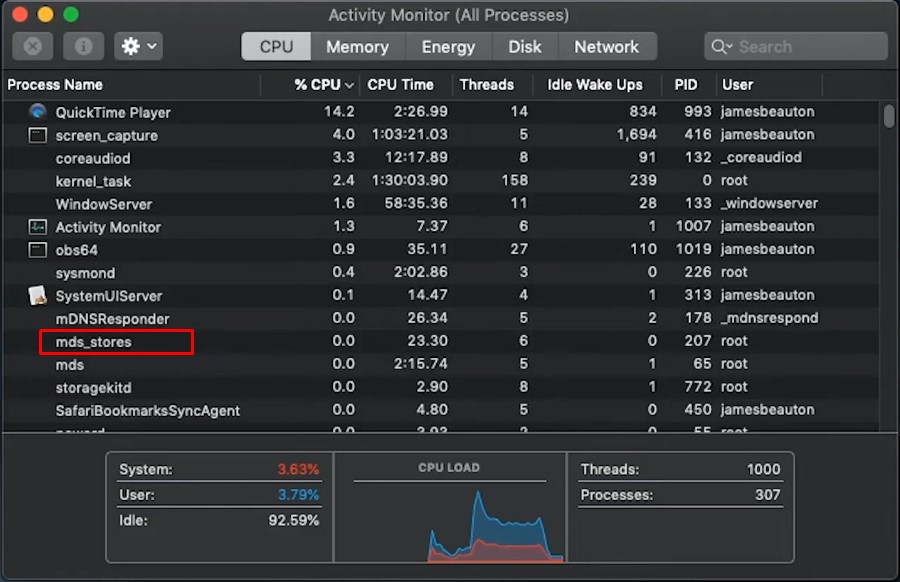
However, suddenly it is performing as if an old lady is walking. You look at the Activity Monitor to find out what could be making your Mac so slow, and you notice a process called mds_stores taking up all your processing time.
Having a high-powered computer and being unable to work with its full potential can be really frustrating. So, how to fix the high CPU consumption of Mds_Stores Mac? Here are 4 ways you can approach this fix:
- Restart Your System
- Disable Spotlight Program
- Stop And Restart Spotlight
- Prevent Spotlight From Searching Some Folders Or Locations
However, before you start toggling with the Root Directory in Mac, there are a few things you need to know and understand.
What Is Mds_Stores On Mac?
Mds_stores is a very important feature of the Apple Spotlight. And the Spotlight is a selection-based search system on your Mac. It is a vital sorting and searching feature on your computer that help you find any files, image, apps, emails, etc. If you ask, Spotlight can even compute or calculate for you. And that is why it is very easy for the Mds_Stores on mac to get clogged with data.
This data server is powerful and easy to use, making it great for indexing hard drives and helping you find what you need when you use Spotlight.Mds_stores is short for Metadata server. It is the heart of Spotlight. If you’re a big fan of the Spotlight feature, you can thank mds_stores for making it possible. Without this driver, Spotlight would have to re-index your hard drive every time you perform a search.
How Works Mds_Stores On Mac?
Mds_stores makes sure you don’t have to go through this while searching on Spotlight by streamlining the indexing. If you need to access anything on your drive quickly, you should go here first. The spotlight will search its index and find the solution or file you need in a flash.
You will find a drop-down menu appearing automatically and providing easy access to all images, apps, and files. This handy tool also allows you to use the built-in calculator and search on the internet in the system. Before you can use Spotlight to search for files, your system needs to index your hard drive using the Mds_stores.
In addition to indexing the hard drive’s directories to help you find things faster, Mds_stores can easily become clogged or full, slowing down the hard drive. If you want to make your device faster, you need to take a look at how much the Spotlight specifically consumes the CPU.
Nevertheless, even if it slows your computer at times, it does speed up your searching process. If you don’t make many searches, then it might not be very helpful for you, but if you do, being able to make a fast search is something to consider.
Why Is Mds_Stores Using So Much Cpu?
The Spotlight Program indexes all of your documents and files on the hard drive, and the Mds_stores is the data server that indexes the hard drive. Because of this, you can quickly find documents and data on your Mac using the Spotlight Search Bar.
The Mds_stores has to index your hard drive; that is why it uses most of the CPU. When you have a lot of files and documents in memory, the Mds_stores will consume the most CPU power since a lot of files are being stored.
The data indexing process in the background is the reason for high CPU consumption. While you add or download any content on your hard drive, the Mds_stores start indexing it, and its CPU usage goes higher. So, any change in content or data is the reason for high CPU consumption by Mds_stores.
If most of the CPU is being used by Mds_stores, then the computer will slow down and even crash frequently. You may also find your Mac is overheating a lot.
How to Fix Mds_Stores Mac’s High CPU Consumption?
Your Mac is going to perform slowly when Mds_stores consumes most of the CPU usage. The computer may start to malfunction, and the system could start to respond slowly to your command. The Mac can also heat up sometimes.
Let’s check out the processes to fix the problem.
Restart Your System
If you notice your Mac is running slower than usual, or if it’s hanging and overheating, then this is the solution for you.
You can do this on the Mac by opening Finder, going to Applications, selecting Utilities, and then clicking and opening “Activity” Monitor App.”

Check how much CPU is being consumed by all the programs and background processes, including the Mds_stores. If Mds_stores is consuming high CPU usage, then restart your computer’s system.
After the computer restarts, open the activity monitor again and check if the issues are solved or not. Restarting fixes such problems most of the time
However, if the issue still persists, follow the other solutions mentioned below.
Disable Spotlight Program
This process will teach you how you can disable Spotlight Program on Mac.
You can find things on your computer very fast with the help of Spotlight. But if you are not someone who use it to find things or use it on rare occasion, then there’s no point in having it slow your computer down.
In such circumstances, you can disable the Spotlight, and it will not show any programs or features, and it will also not use high CPU consumption.
You can disable it by just following these simple steps:
- Open Finder from your computer.
- Click on the Applications folder.
- Now, go to Utilities and open the list of apps.
- Click and open the Terminal App.
- Type “sudo mdutil -a -i off” in the Terminal and press Enter.
- The Mac system will ask for your Admin Password. Provide the details.
- Now, press the Return/Enter key to finish the process or command.
- That’s it, you have just disabled the Spotlight on your Mac system.
How To Enable Spotlight On Mac Again?
While enabling the Spotlight isn’t part of the process to fix Mds_stores high CPU consumption, you still need to learn this in case you want to enable it in the future. Follow the steps below to learn how to enable Spotlight on Mac:
- Go to the Terminal App and insert the command “sudo mdutil -a -i on“.
- Press Enter, and give your Admin Password.
- Provide the details and complete the process or command by clicking the Enter key.
- The Spotlight is now enabled on your MacBook.
Why do I have to disable Spotlight on Mac?
If you’re seeing high CPU usage from the Mds, Mds_stores, or Mdworker processes, it’s likely due to the Spotlight program. While it’s running, it can sometimes impact performance. By disabling Spotlight, all associated processes will also be disabled, and your system will run more smoothly.
Stop And Restart Spotlight
This method is a little different than disabling Spotlight. In this process, you will be stopping the Spotlight program and Restarting it. After doing this, still you again want to have the Spotlight Feature, then this is the method for you.
Step 1: Stop Spotlight on Mac
- Access the Application using Finder.
- Go to Utilities and, from there, open the Terminal App.
- In the Terminal, put in the command “sudo launchctl unload -w /System/Library/LaunchDaemons/com.apple.metadata.mds.plist”.
- Click Enter and provide your Admin Password.
- After providing the details, press the Enter key.
- Restart your Mac.
Step 2: Restart Spotlight on Mac
- Access the Terminal App using the Utilities.
- Put this command in the terminal “sudo launchctl load -w /System/Library/LaunchDaemons/com.apple.metadata.mds.plist”.
- Click Enter and give your password.
- Press the Enter key again and then, Restart your Mac system.
Prevent Spotlight From Searching Some Folders Or Locations
You can take various approaches to fix the high CPU consumption issue of Mds_stores. You can disable the Spotlight, or you can reduce its indexing data. From our previous method, you already know how to disable Spotlight.
Now you will learn how you can prevent Spotlight from searching some folders or locations. And after you are done removing some folders from the Spotlight search criteria, this will result in less CPU usage by the Mds_stores.
This procedure requires you to complete three simple steps:
Re-Index of Spotlight Database
Prevent Spotlight from Searching Some Locations/Folders
Here are the details of how you can complete these three steps:
Step 1: Delete Spotlight Database
- Open Finder and find Applications
- From the Applications, select Utilities and open the Terminal App.
- Enter this command in the Terminal “sudo rm -rf /.Spotlight-V100/*”
- Click Enter key and type your Admin Password.
- Press the Enter key again, and all your Spotlight databases on the Mac will be deleted.
Step 2: Re-Index of Spotlight Database
After you have deleted the Spotlight database completely, now it’s time to restart your computer. This will allow the Spotlight to re-index all the data and content in the hard drive of your system. It might take a lot of time to re-index, so don’t be impatient. Wait patiently until the process is complete.
Step 3: Prevent Spotlight from Searching Some Locations/Folders
Following the re-indexing of the Spotlight database, you need to take the following steps in order to prevent Spotlight from searching certain folders or locations.
- Select the Desktop Menu and go to the System Preferences.
- Find the Spotlight.
- Click on the Privacy tab/option.
- Here, add the folders you don’t want Spotlight to find.
- Some folders you can add are Dropbox, CrashPlan, MobileSync, ViberPC CrashReporter, etc.
- The Spotlight will not search the folders that you have just added to the privacy section.
- After the completion of this process, you will find that the CPU usage by Mds_stores is reduced, which will take the consumption level to normal.
A Few Things To Remember
In order to prevent Spotlight from searching folders and locations or disable/enable Spotlight, you need to have Administrative authority on your Mac system. If you are logged in as a Guest User on the Mac, then you can’t fix the mds_stores consuming high CPU usage issue. Log out of your account and log in as an administrator to resolve these issues.
Final Thoughts
If you are noticing that your Mac is running slower, then it is a good idea to check if the Mds_stores process is the culprit behind it. By following the above article, you will be able to find if the Mds_stores are causing any issues in your Mac system. And if it is, then you will also learn how to fix Mds_stores Mac’s High CPU consumption and should be able to fix it by yourselves.
While Mds is a vital part of the Spotlight search feature of Mac, it is not really that important if you are not using the Spotlight. And if you are not using the Spotlight often or ever, then disabling it is a good idea.